Language models are stuck in the past — literally. Even the freshest OpenAI model has a training cutoff that’s already months old by the time it lands in your app. If a user asks about a stock price, a match result, or a package released yesterday, the model has three options: hallucinate, refuse, or ask the internet. This post wires up the third option.
We’re going to build a Blazor Web App on .NET 10 with a chat interface. The model doesn’t just answer from its own head — it has a search_web tool that hits Google’s Custom Search JSON API. It decides when to call, we hand it the results, and it composes a grounded reply. All the pieces we’ve covered separately (Microsoft.Extensions.AI, function calling, Blazor Server) come together here.
What we’re building
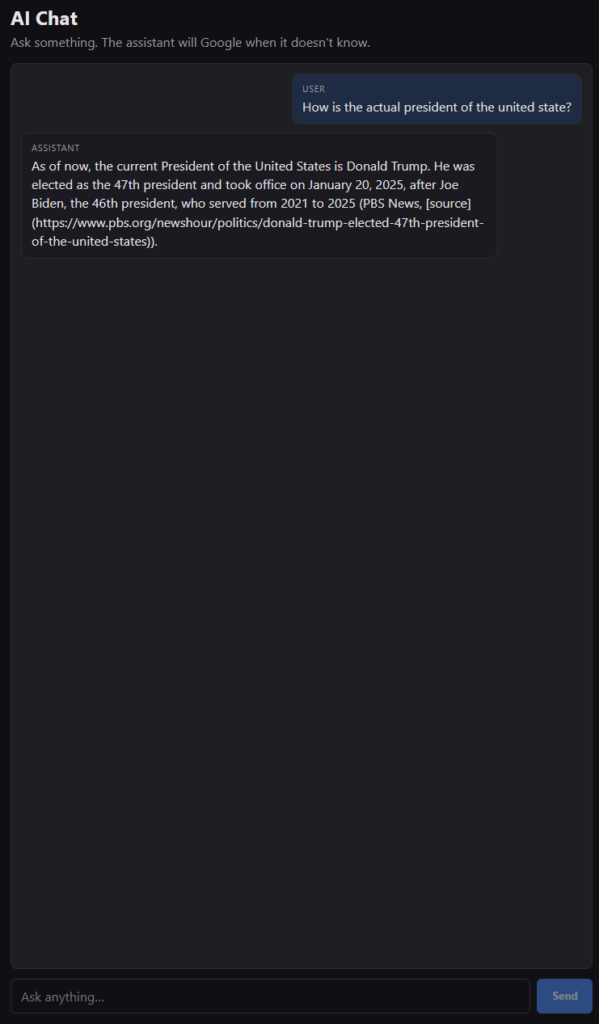
A single-page chat: user types, the assistant answers. When the assistant needs current information it silently issues a Google query, reads the top results, and works them into the reply. Under the hood:
- Blazor Web App (InteractiveServer) — chat UI, server-side circuit, API keys never leave the server.
Microsoft.Extensions.AI— theIChatClientabstraction andUseFunctionInvocation()middleware.AIFunctionFactory.Create(...)— wraps ourSearchAsyncmethod as a tool the model can call.- Google Programmable Search Engine + Custom Search JSON API — the actual web search.
Getting the Google credentials
Google’s search API is called Custom Search JSON API, and it’s fed by a Programmable Search Engine (PSE) that you configure. You need two values:
- An API key. In the Google Cloud Console, create (or reuse) a project, enable the Custom Search API, and generate an API key under APIs & Services → Credentials.
- A Search Engine ID (
cx). Go to programmablesearchengine.google.com, create a new search engine, and turn on Search the entire web if you don’t want to scope it to a domain. The engine’s ID is yourcx.
The free tier gives you 100 queries per day. That’s fine for a demo; if you plan to ship this, budget for the paid tier or introduce caching (more on that at the end).
Store both values with user-secrets so they stay out of the repo:
dotnet user-secrets set "OpenAI:ApiKey" "sk-..."
dotnet user-secrets set "Google:ApiKey" "AIza..."
dotnet user-secrets set "Google:SearchEngineId" "abc123def456..."
Scaffolding the project
dotnet new blazor -n BlazorChatSearch -f net10.0 --interactivity Server
cd BlazorChatSearch

dotnet add package Microsoft.Extensions.AI
dotnet add package Microsoft.Extensions.AI.OpenAI
dotnet add package OpenAI
The Google search service
Custom Search returns a JSON payload with a items array. Each item has a title, link, and snippet — exactly what the model needs to write a grounded reply. Wrap the call in a plain service that hides the HTTP details:
using System.Net.Http.Json;
using System.Text.Json.Serialization;

public class GoogleSearchService
{
    private readonly HttpClient _http;
    private readonly string _apiKey;
    private readonly string _cx;

    public GoogleSearchService(HttpClient http, IConfiguration config)
    {
        _http   = http;
        _apiKey = config["Google:ApiKey"]         ?? throw new InvalidOperationException("Google:ApiKey missing");
        _cx     = config["Google:SearchEngineId"] ?? throw new InvalidOperationException("Google:SearchEngineId missing");
    }

    public async Task<IReadOnlyList<SearchResult>> SearchAsync(string query, int take = 5, CancellationToken ct = default)
    {
        var url = "https://www.googleapis.com/customsearch/v1"
                + $"?key={Uri.EscapeDataString(_apiKey)}"
                + $"&cx={Uri.EscapeDataString(_cx)}"
                + $"&q={Uri.EscapeDataString(query)}"
                + $"&num={Math.Clamp(take, 1, 10)}";

        var payload = await _http.GetFromJsonAsync<GoogleResponse>(url, ct)
                      ?? new GoogleResponse();

        return payload.Items?
            .Select(i => new SearchResult(i.Title, i.Link, i.Snippet))
            .ToList() ?? [];
    }

    public record SearchResult(string Title, string Url, string Snippet);

    private class GoogleResponse
    {
        [JsonPropertyName("items")] public List<GoogleItem>? Items { get; set; }
    }
    private class GoogleItem
    {
        [JsonPropertyName("title")]   public string Title   { get; set; } = "";
        [JsonPropertyName("link")]    public string Link    { get; set; } = "";
        [JsonPropertyName("snippet")] public string Snippet { get; set; } = "";
    }
}
Register it with a typed HttpClient:
builder.Services.AddHttpClient<GoogleSearchService>();
Exposing search as a tool to the model
The wiring is the same pattern from the Microsoft.Extensions.AI post: create an IChatClient, register the tool via AIFunctionFactory.Create, and turn on the auto-invocation middleware.
The important trick is that we don’t want to hand the GoogleSearchService to the factory directly — the model shouldn’t see all the constructor plumbing. Instead we wrap it in a purpose-built method with clean [Description]s, and register that:
using System.ComponentModel;
using Microsoft.Extensions.AI;

public class SearchTool
{
    private readonly GoogleSearchService _google;
    public SearchTool(GoogleSearchService google) => _google = google;

    [Description("Searches the public web via Google. Use this when the user asks about anything recent, factual, or outside your training knowledge. Returns the top results with title, url, and snippet.")]
    public async Task<string> SearchWeb(
        [Description("The natural-language search query. Be specific — pass keywords, not a full sentence.")] string query)
    {
        var results = await _google.SearchAsync(query, take: 5);
        if (results.Count == 0) return "No results.";

        return string.Join("\n\n", results.Select((r, i) =>
            $"[{i + 1}] {r.Title}\n{r.Url}\n{r.Snippet}"));
    }
}
Return a compact plain-text block instead of JSON — the model reads it just as well and you save tokens.
Composing the chat client
Register everything and build the IChatClient per scope:
builder.Services.AddScoped<SearchTool>();

builder.Services.AddScoped<IChatClient>(sp =>
{
    var config = sp.GetRequiredService<IConfiguration>();
    var search = sp.GetRequiredService<SearchTool>();
    var apiKey = config["OpenAI:ApiKey"]
        ?? throw new InvalidOperationException("OpenAI:ApiKey missing");

    return new OpenAIClient(apiKey)
        .GetChatClient("gpt-4o-mini")
        .AsIChatClient()
        .AsBuilder()
        .UseFunctionInvocation()
        .Build();
});
The tool is registered per-request on ChatOptions, not on the client — that way the same IChatClient can be used with different toolsets in different pages.
The chat page
A minimal chat is one input, one Send button, one scrolling list of messages. Everything runs on the server circuit, so the code is startlingly plain:
@page "/"
@rendermode InteractiveServer
@inject IChatClient Chat
@inject SearchTool SearchTool

<PageTitle>AI Chat with Web Search</PageTitle>

<h1>AI Chat</h1>
<p class="lede">Ask something. The assistant will Google when it doesn't know.</p>

<div class="chat">
    @foreach (var m in _visible)
    {
        <div class="msg @m.Role">
            <div class="who">@m.Role</div>
            <div class="text">@m.Text</div>
        </div>
    }
    @if (_busy) { <div class="msg assistant"><div class="text">…thinking</div></div> }
</div>

<form @onsubmit="Send" @onsubmit:preventDefault>
    <input @bind="_input" @bind:event="oninput" placeholder="Ask anything…" disabled="@_busy" />
    <button type="submit" disabled="@_busy">Send</button>
</form>

@code {
    private readonly List<ChatMessage> _history = new()
    {
        new(ChatRole.System,
            "You are a helpful assistant. When the user asks about anything recent or " +
            "outside your training knowledge, call the search_web tool. Cite the source URL " +
            "for any fact you get from a search result.")
    };
    private readonly List<(string Role, string Text)> _visible = new();
    private string _input = "";
    private bool _busy;

    private async Task Send()
    {
        if (string.IsNullOrWhiteSpace(_input) || _busy) return;

        var question = _input.Trim();
        _input = "";
        _visible.Add(("user", question));
        _history.Add(new ChatMessage(ChatRole.User, question));

        _busy = true;
        try
        {
            var options = new ChatOptions
            {
                Tools = [AIFunctionFactory.Create(SearchTool.SearchWeb)]
            };

            var response = await Chat.GetResponseAsync(_history, options);
            _history.AddMessages(response);
            _visible.Add(("assistant", response.Text ?? ""));
        }
        catch (Exception ex)
        {
            _visible.Add(("assistant", $"Error: {ex.Message}"));
        }
        finally
        {
            _busy = false;
        }
    }
}
Two shapes of history are worth calling out:
_history— the fullChatMessagelist the model sees. It includes the internal tool-call and tool-result messages thatUseFunctionInvocationinjects. Never trim these out mid-conversation — the model needs the full trace to know it already ran the search._visible— what we render. Just user turns and final assistant replies. Tool traffic stays invisible.
What happens on a search-worthy question
The user types “Who won the F1 race last weekend?”. The circuit flow:
- Blazor calls
Chat.GetResponseAsync(_history, options). - The
UseFunctionInvocationmiddleware sends the message history and the JSON schema forsearch_webto OpenAI. - The model realizes it can’t answer from memory and returns a tool-call:
search_web(query="F1 race winner last weekend"). - The middleware invokes
SearchTool.SearchWeb, which hits Google Custom Search and returns the formatted top-5 block. - The middleware appends the tool result and asks OpenAI for the final reply.
- The model composes a grounded answer, cites the top URL, and we hand it back to Blazor to render.
You never touched a search parser. The model chose the query text on its own. That’s the difference between “LLM + web search” and “LLM stuck in a training cutoff.”
Prompting tips that matter
- Be explicit about when to search. Weak system prompts lead to two failure modes: models that never search (they hallucinate an answer) or search on every turn (slow, expensive, sometimes wrong). “Call search_web when the user asks about anything recent or outside your training knowledge” is a good default.
- Force citations. Add “cite the source URL” to your system prompt. Without it the model will happily paraphrase results without attribution.
- Cap the results. Five snippets is usually enough. More just eats context and rarely improves the answer.
Where to take this next
- Streaming. Swap
GetResponseAsyncforGetStreamingResponseAsyncand update the last visible message as chunks arrive. The tool call happens invisibly during the stream, so the UX feels natural. - Caching. Wrap
GoogleSearchServicewithIMemoryCachekeyed by the query. Free-tier limits are small; identical queries within an hour rarely need a fresh fetch. - Result diversity. Google Custom Search lets you weight sites or restrict domains via the PSE config. Point the engine at trusted sources for your domain (docs, standards bodies, gov sites) and citations get a lot better.
- Fetching pages. Snippets are short. For deep questions, add a second tool
fetch_page(url)that pulls the page HTML throughHtmlAgilityPack(or the browser via a headless service) and returns cleaned text. The model will call it after a search when it needs more than a snippet. - Guardrails. Rate-limit per session, sanitize what you send to Google (some queries you may not want to log), and log every tool call for auditing.
Wrapping up
An AI chat with web search is basically three moving parts glued together: a chat client, a search API, and a tool wrapper the model can invoke. Microsoft.Extensions.AI’s function-invocation middleware is the glue, Google’s Custom Search is the eyes, and Blazor Server keeps your keys where they belong.
The full working sample is in the companion repo BlazorChatSearch — plug in your three keys and run dotnet run.
Repository